Data Manager in Google Analytics: what changes for your data

Google launched Data Manager in Google Analytics as a beta on November 6, 2026, according to the Google Analytics "What's new" page. It puts product links, data streams and first-party data (the data your business collects about its own customers) on one admin page. It also shows diagnostic alerts and the health of each connection.
If you link Google Analytics to Google Ads to count sales or leads, this changes where you create new connections. Google also warns that one setup mistake can count your conversions twice.
What is Data Manager in Google Analytics?
Data Manager is a single page in the Google Analytics Admin area where you set up, manage and repair your data connections. You'll find it as a Data Manager tab in the left menu, below "My preferences", according to Google's help page for the tool.
What exactly changed?
Google lists four functions:
- One place to manage: set up, monitor and fix connections from a single page.
- Simpler ingestion: one import flow, with more connectors than before.
- Data connection map: your property sits in the middle, sources on one side and destinations on the other. A broken source shows in red with a Fix button next to it.
- Data strength guide: flags gaps in your measurement and suggests what to add.
There are limits. You need the right permissions on the property, and the Data Manager landing page does not work in subproperties or roll-up properties.
The tool is still in beta and Google has not said when every account will get it. On November 9, Barry Schwartz wrote on Search Engine Roundtable that the tab had not appeared in his account yet.
How do you connect a new data source?
The help page lists the steps. Click +Connect Product, pick a data source, choose how you'll use it, then click Begin setup. To remove a connection, open "Connected products", select it, choose Delete in the "Manage Connection" panel and confirm.
The map has three views. The mini map is the default. The expanded view adds details such as a Google Sheet name or a Tag ID. The full-page view makes it easier to open and close branches. Hover over any node and the map highlights its whole path from source to destination.
How does data move between Google Analytics and Google Ads?
Data moves one way, from Google Analytics to the linked Google Ads and Google Marketing Platform accounts, never back. Google splits the work like this:
- Create new connections in Data Manager in Analytics, and the data reaches the linked Google Ads account.
- Keep managing existing Google Ads connections in Google Ads. Don't rebuild them in Analytics.
- Earlier imports in Analytics show up in Data Manager automatically.
- Item data and third-party campaign data can only be set up in Data Manager in Analytics.
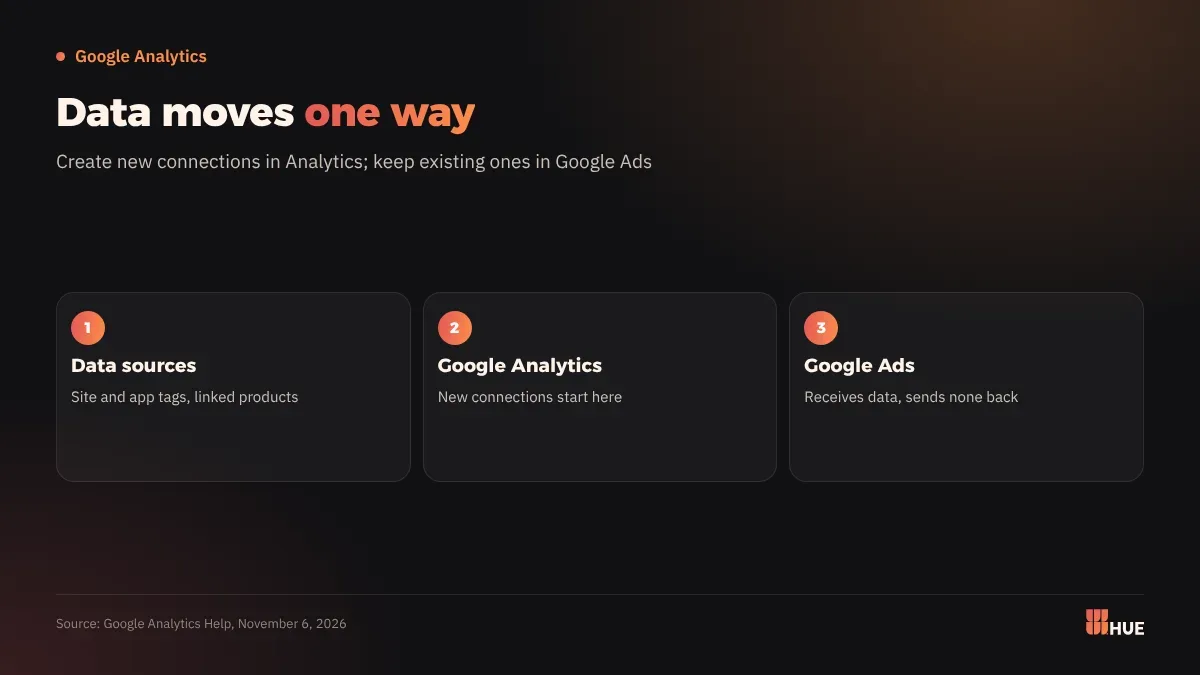
Google Ads has its own tool with the same name. Google Ads Data Manager sits under Tools and imports customer data for Customer Match lists, offline conversion imports and enhanced conversions for leads. BigQuery, HubSpot and uploaded files are among its sources.
What does this mean for businesses in Saudi Arabia and Egypt?
Google's page lists no countries and no Arabic interface has been announced. The only stated conditions are property type and permissions, so check your own account for the tab.
The practical effect falls on teams that set ad budgets from conversion numbers. Picture an online store that uploads its customer list to Google Ads, or a company that sends leads from its CRM. Each probably has a connection running in Google Ads already. If someone on the team builds the same connection again in Analytics, conversions may be counted twice, and budget decisions end up resting on an inflated number.
Customer-based targeting depends on these connections too. The retention goals we covered in Google Ads customer lifecycle goals run on Customer Match lists, and those lists are only as accurate as the data feeding them.
What should you do now?
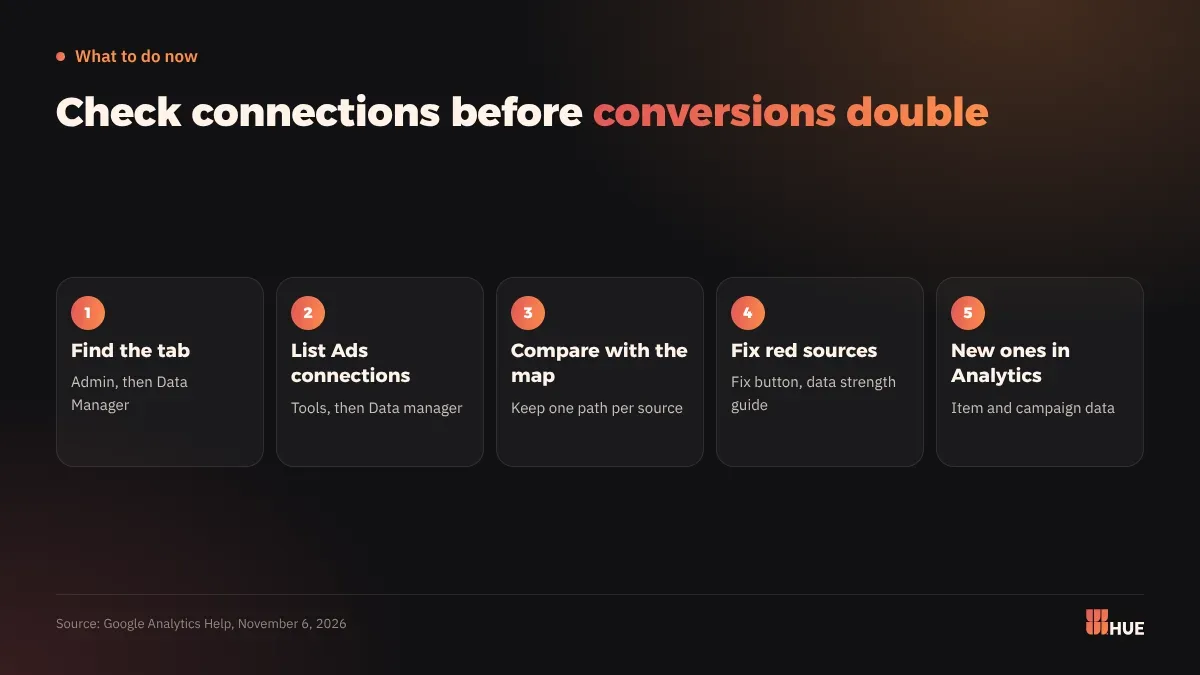
- Open Admin in Google Analytics and look for the Data Manager tab. If it isn't there, the tool hasn't reached your account and you don't need to change anything.
- List your existing Google Ads connections: go to Tools, then Data manager, and write down each source and what it feeds, such as a Customer Match list or an offline conversion import.
- Compare that list with the connection map in Analytics. If two paths send the same conversions, keep one and turn off the other.
- Fix any source marked red with the Fix button, then read the data strength guide's suggestions.
- Create new connections from Analytics from now on, especially item data and third-party campaign data.
Questions
Is Data Manager in Google Analytics available to every account?
No. It is in beta and Google has not published a date for every account. Its landing page also does not work in subproperties or roll-up properties.
Should I move my existing Google Ads connections to Analytics?
No. Google says to keep managing existing connections in Google Ads and to create only new ones in Data Manager in Analytics.
Why could conversions double after using Data Manager?
Google says that switching on the same data pipeline in both Analytics and Google Ads can log conversions twice. Keep one path per source.